Ouster SDK Zone Monitor
Introduction
Ouster Firmware 3.2 introduces Zone Monitor, which enables an Ouster LiDAR sensor to monitor multiple user-provided 3D zones within its field of view for the presence or absence of objects. The Ouster LiDAR monitors these zones without the need for extra equipment or software, making this feature useful for a wide variety of security and robotics applications, such as perimeter intrusion detection and collision avoidance.
Ouster SDK 0.16.0 provides full support for this feature, allowing users to easily read and write Zone Monitor configuration from and to Ouster LiDAR sensors, record and visualize the zones and their states over time, and test a Zone Monitor configuration using pre-recorded data or data recorded from a sensor running older firmware.
This document describes how the feature works, its use cases and capabilities, how to configure an Ouster LiDAR to use this feature, and how to use the SDK to create, visualize, and test Zone Monitor configurations. The Ouster Firmware documentation contains further information about Zone Monitor, including relevant extensions to the LiDAR’s UDP protocol and HTTP APIs.
Caution
FW 3.2 and Ouster Rev 7 and earlier sensor models do not yet support using Zone Monitor for use in safety-critical applications.
How it works
An Ouster LiDAR supports configurations of as many as 128 zones, with support for live monitoring of up to 16 zones at a time.
The configuration for each zone consists of a 3D geometry and triggering criteria. When the user uploads and applies a Zone Monitor configuration to the LiDAR, the LiDAR uses the zone geometry to render a pair of near/far distance images that it uses to determine which LiDAR measurements the zone contains during each LiDAR scan. During each scan, the LiDAR’s firmware also checks the triggering criteria for each zone and transmits a packet containing information for each live zone, including whether that zone has met the triggering criteria (i.e. an object has entered or left the zone) or whether there is an obstruction preventing the LiDAR from determining the status of the zone.
Additionally, Ouster Firmware 3.2 introduces new LiDAR packet formats that include per-pixel zone occupancy information. When one of these formats is in use, each LiDAR point contains an additional bitset that indicates which live zones contain the corresponding point.
Use cases and capabilities
Zone Monitor is a versatile feature that can be used in a variety of applications. Some example use cases include the following:
Perimeter intrusion detection
Collision avoidance
Cliff detection
Example use case: a vehicle-based LCAS system
Zone Monitor is a useful feature for many robotics applications, such as collision avoidance. This section provides a simplified description of how to integrate Zone Monitor into a vehicle-based LiDAR Collision Avoidance (LCAS) system.
In this system, a LiDAR is mounted on the front of a vehicle. The system must stop the vehicle if an object is present in the vehicle’s predicted drive path, which the controller computes from operator inputs.
The system implementer specifies several zones. An LCAS controller then determines which subset of zones should be live based on the vehicle’s current speed and direction of travel. The vehicle’s speed and direction determine its move plan, which in turn determines which zones to monitor. For example, if the operator turns the steering wheel to the right, the LCAS controller recomputes the predicted vehicle path and tells the LiDAR to activate the zones on the right side of the vehicle. If the operator moves the steering wheel back to the center, the LCAS controller tells the LiDAR to monitor the zones directly in front of the vehicle.
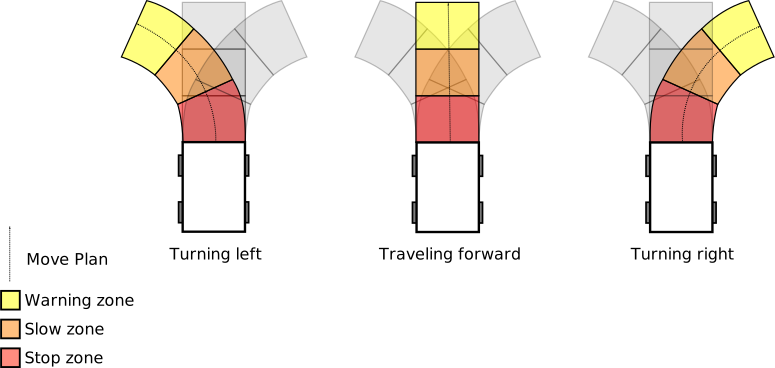
A diagram depicting an example LCAS zone configuration, with live zones depending on steering angle
When the sensor sets a zone’s state to triggered, it sends a packet back to the controller, which then alerts the operator to slow or stop.
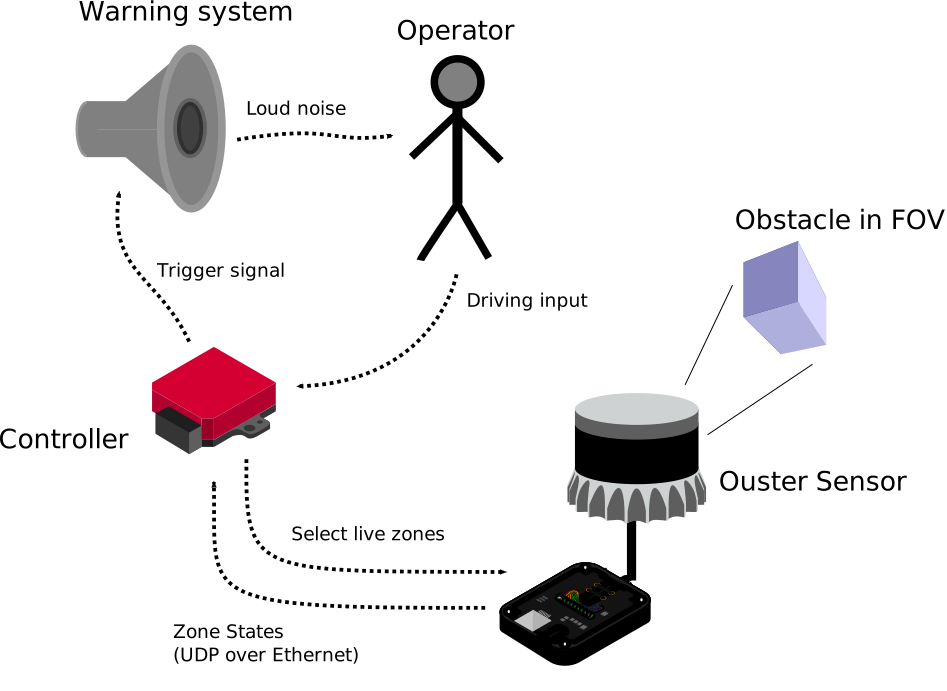
A diagram depicting components in an LCAS system for a vehicle
Creating zones
The LiDAR can monitor zones that are unobstructed and within its field of view. Conversely, a configuration that specifies a zone outside the field of view is invalid. Additionally, if a zone is behind an obstruction or occlusion, the LiDAR will not be able to determine whether an object occupies it. However, the LiDAR will report the number of points that occlude a zone, which helps indicate whether the sensor can monitor the zone effectively.
Users can specify zones either using 3D meshes that the sensor renders to an internal image-based representation, or directly as range image pairs (bypassing the rendering step.) The following sections describe both approaches, as well as how to specify the zone’s criteria for triggering.
Tip
The SDK currently supports loading meshes from STL files. A large number of tools, such as Blender can produce STL files from 3D models.
Defining a zone from a 3D mesh
When the user uploads a 3D mesh (e.g., in the form of an STL file) as part of a zone’s configuration, the sensor renders this geometry into a pair of near/far distance images that it uses during each scan to determine which LiDAR measurements are within the zone. This rendering process checks the intersections between each LiDAR beam and the 3D mesh. Because of this, the LiDAR also requires that each zone’s geometry meets some basic criteria.
Tip
Zone Monitor assumes meter units for mesh vertex coordinate values. Although the STL format does support a scale factor, many 3D modeling tools allow for one when exporting a model to STL. When exporting STL files for Zone Monitor zones, ensure that the scale factor is set correctly so that the geometry is the correct size in meters.
First, each of the LiDAR’s beams should intersect the 3D geometry no more than two times. If a beam intersects the geometry two or more times, the LiDAR considers the portion between the closest and furthest intersections to be inside the zone and all other portions outside. If a beam intersects the geometry exactly once, then the LiDAR considers the area between the sensor and the intersection to be inside the zone and all other portions outside. Importantly, this means that the LiDAR cannot monitor all 3D geometries. The Visualization section later in this document describes how to visualize any potential difference between the specified geometry and what the sensor can monitor.
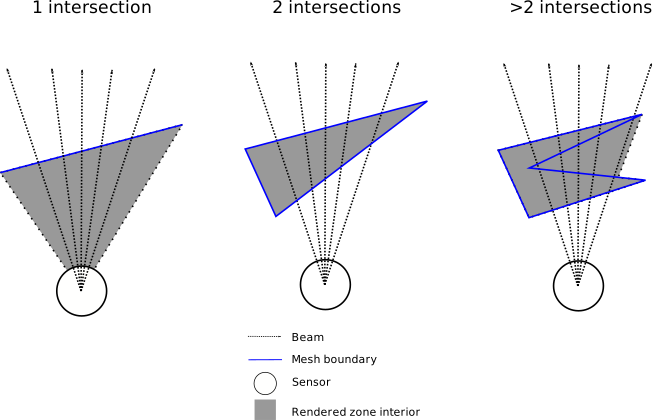
A top-down view of some example mesh shapes and how they affect rendering results
Another important criterion for a valid zone configuration is that the number of points required for the sensor to trigger the zone must not be greater than the number of beams that intersect it. (If this criterion is not met, the LiDAR never triggers the zone because the number of LiDAR measurements would always be fewer than the number of points the configuration specifies for triggering.)
Defining a zone from a pair of depth images directly using ZRB format
Users can also specify a pair of images representing the near and far ranges of the zone directly (rather than having the sensor render them from a 3D mesh.) The SDK provides an API for doing this, including saving the results to a ZRB file - a proprietary format for encoding a zone as a near/far image pair. Using this approach is subject to some requirements and limitations:
The near/far images are 32-bit unsigned integer images representing distance in millimeters.
The near/far images must be in the LiDAR’s coordinate frame.
The near/far images for a zone must have the same resolution.
The near value for a pixel must always be less than or equal to the far value for the corresponding pixel.
The resolution must be the same for all images within a given zone set.
Specifying zone triggering criteria
Zones have several parameters that determine how and when they trigger. The most important of these is the number of points that must be present within the zone for it to trigger. This parameter is an integer. Other parameters include the frame count, which specifies the number of consecutive LiDAR scans that must meet the triggering criteria before the zone triggers, and the mode, which specifies whether the zone triggers when the number of points within it is greater than or less than the specified number of points. Here is a complete list of zone parameters:
mode- eitherOCCUPANCYorVACANCY.
point_count- when the mode isOCCUPANCYthere must be this many points or more within the zone for it to trigger; when the mode isVACANCYthere must be fewer than this many points within the zone for it to trigger.
frame_count- the number of consecutive LiDAR scans that must meet the triggering criteria before the zone triggers.
label- an optional string label for the zone, useful for identifying zones in application code.
Refer to the Python Zone and C++ ouster::sdk::core::Zone API references for more information about these parameters.
So far, we’ve described how to define a single zone’s geometry and triggering criteria. The following sections will explain how to programmatically create a complete set of zones from either mesh-derived or image-derived zone geometry and upload it to the sensor.
Creating a ZoneSet
The Python class ZoneSet and C++ class ouster::sdk::core::ZoneSet are for storing a complete Zone Monitor configuration consisting of multiple zones, their geometry, and their associated metadata.
Specifying a sensor-to-body transform for the ZoneSet
The ZoneSet requires a sensor-to-body transform that specifies the pose of the sensor relative to the zones. Using this transform allows creating zone geometry that is defined in a body frame (e.g., the vehicle frame) rather than the sensor frame. This is useful because the zones often correspond to physical features of the body (e.g., the sides of a vehicle) rather than features of the sensor itself. Using an identity matrix for the transform means that the zones’ geometries use the sensor’s coordinate frame.
The Ouster Sensor Docs contain a detailed description of the sensor’s coordinate frames.
Important
The zone geometry must remain fully or partially within the sensor’s FOV after applying the sensor-to-body transform; otherwise, the zone set is invalid.
Creating a ZoneSet using the SDK
The following examples describe how to create and define zone sets that the LiDAR can render from STLs or directly from ZRBs, respectively.
In both cases, the SDK writes the ZoneSet as a zip file, which the sensor accepts as an upload either via the HTTP API or from the web UI.
Creating an STL zone set
from ouster.sdk.zone_monitor import Zone, ZoneSet, ZoneMode, Stl, \
    CoordinateFrame, ZoneSetOutputFilter

# Define a zone from STL file
stl_0 = Stl(os.path.join(data_dir, "0.stl"))
stl_0.coordinate_frame = CoordinateFrame.BODY
zone_0 = Zone()
zone_0.stl = stl_0
zone_0.point_count = 10
zone_0.frame_count = 1
zone_0.mode = ZoneMode.OCCUPANCY

# Define another zone from STL file
stl_1 = Stl(os.path.join(data_dir, "1.stl"))
stl_1.coordinate_frame = CoordinateFrame.BODY
zone_1 = Zone()
zone_1.stl = stl_1
zone_1.point_count = 20
zone_1.frame_count = 2
zone_1.mode = ZoneMode.VACANCY

# Create a zone set and add the zones
zone_set = ZoneSet()
zone_set.sensor_to_body_transform = np.eye(4)
zone_set.zones = {0: zone_0, 1: zone_1}
zone_set.power_on_live_ids = [0, 1]

# Print the JSON representation of the zone set
print(zone_set.to_json(ZoneSetOutputFilter.STL))

# Write out the zone set to a zip file
zone_set.save(zip_path, ZoneSetOutputFilter.STL)
// Define a zone from STL file core::Stl stl_0(data_dir + "/0.stl"); stl_0.coordinate_frame = core::Stl::CoordinateFrame::BODY; core::Zone zone_0{}; zone_0.stl = stl_0; zone_0.point_count = 10; zone_0.frame_count = 1; zone_0.mode = core::Zone::ZoneMode::OCCUPANCY; // Define another zone from STL file core::Stl stl_1(data_dir + "/1.stl"); stl_1.coordinate_frame = core::Stl::CoordinateFrame::BODY; core::Zone zone_1{}; zone_1.stl = stl_1; zone_1.point_count = 20; zone_1.frame_count = 2; zone_1.mode = core::Zone::ZoneMode::VACANCY; // Create a zone set and add the zones core::ZoneSet zone_set; zone_set.sensor_to_body_transform = core::mat4d::Identity(); zone_set.zones = {{0, zone_0}, {1, zone_1}}; zone_set.power_on_live_ids = {0, 1}; // Print the JSON representation of the zone set std::cout << zone_set.to_json(core::ZoneSetOutputFilter::STL) << std::endl; // Write out the zone set to a zip file zone_set.save(zip_path, core::ZoneSetOutputFilter::STL);
Creating a ZRB zone set
from ouster.sdk.zone_monitor import Zone, ZoneSet, ZoneMode, Zrb, Stl, \ CoordinateFrame, ZoneSetOutputFilter sensor_to_body_transform = np.eye(4) # Define a zone from a pair of images zrb = Zrb() zrb.near_range_mm = 10_000 * np.ones((sensor_info.h, sensor_info.w), np.uint32) zrb.far_range_mm = 100_000 * np.ones((sensor_info.h, sensor_info.w), np.uint32) zrb.serial_number = sensor_info.sn zrb.beam_to_lidar_transform = sensor_info.beam_to_lidar_transform zrb.lidar_to_sensor_transform = sensor_info.lidar_to_sensor_transform zrb.sensor_to_body_transform = sensor_to_body_transform zone_0 = Zone() zone_0.point_count = 100 zone_0.frame_count = 1 zone_0.mode = ZoneMode.OCCUPANCY zone_0.zrb = zrb # Create a second zone from an STL file zone_1 = Zone() stl_1 = Stl(os.path.join(data_dir, "1.stl")) zone_1.stl = stl_1 zone_1.stl.coordinate_frame = CoordinateFrame.BODY zone_1.point_count = 10 zone_1.frame_count = 1 zone_1.mode = ZoneMode.OCCUPANCY # Create a zone set and add the zones zone_set = ZoneSet() zone_set.sensor_to_body_transform = sensor_to_body_transform zone_set.power_on_live_ids = [0, 1] zone_set.zones = {0: zone_0, 1: zone_1} # render all STLs to ZRBs zone_set.render(sensor_info) # Print the JSON representation of the zone set print(zone_set.to_json(ZoneSetOutputFilter.ZRB)) # Write out the zone set to a zip file zone_set.save(zip_path, ZoneSetOutputFilter.ZRB)core::mat4d sensor_to_body_transform = core::mat4d::Identity(); // Define a zone from a pair of images core::Zrb zrb{}; zrb.near_range_mm = core::img_t<uint32_t>::Constant(sensor_info.h(), sensor_info.w(), 10000); zrb.far_range_mm = core::img_t<uint32_t>::Constant(sensor_info.h(), sensor_info.w(), 100000); zrb.serial_number = sensor_info.sn; zrb.beam_to_lidar_transform = sensor_info.beam_to_lidar_transform; zrb.lidar_to_sensor_transform = sensor_info.lidar_to_sensor_transform; zrb.sensor_to_body_transform = sensor_to_body_transform; core::Zone zone_0{}; zone_0.point_count = 100; zone_0.frame_count = 1; zone_0.mode = core::Zone::ZoneMode::OCCUPANCY; zone_0.zrb = zrb; // Create a second zone from an STL file core::Zone zone_1{}; core::Stl stl_1(data_dir + "/1.stl"); zone_1.stl = stl_1; zone_1.stl.value().coordinate_frame = core::Stl::CoordinateFrame::BODY; zone_1.point_count = 10; zone_1.frame_count = 1; zone_1.mode = core::Zone::ZoneMode::OCCUPANCY; // Create a zone set and add the zones core::ZoneSet zone_set{}; zone_set.sensor_to_body_transform = sensor_to_body_transform; zone_set.power_on_live_ids = {0, 1}; zone_set.zones = {{0, zone_0}, {1, zone_1}}; // render all STLs to ZRBs zone_set.render(sensor_info); // Print the JSON representation of the zone set std::cout << zone_set.to_json(core::ZoneSetOutputFilter::ZRB) << std::endl; // Write out the zone set to a zip file zone_set.save(zip_path, core::ZoneSetOutputFilter::ZRB);
Configuring the LiDAR
Enabling Zone Monitor on an Ouster LiDAR requires uploading and applying a valid Zone Monitor configuration and specifying a destination for Zone Monitor UDP packets. Users can do both using the SDK.
Important
When uploading a zone set to a sensor all of its zones must either be STL-based or ZRB-based; the sensor does not support mixing both types in a single zone set.
Uploading and applying the zone set to the sensor
from ouster.sdk.core import SensorHttp
http = SensorHttp.create(args.sensor_hostname)
print("Uploading zone monitor config...")
http.set_zone_monitor_config_zip(zone_set_from_zip.to_zip_blob(output_filter))
print("Applying staged config to active...")
http.apply_zone_monitor_staged_config_to_active()
print("Reinitializing sensor...")
http.reinitialize()
auto http = sensor::SensorHttp::create(sensor_hostname);
std::cout << "Uploading zone monitor config..." << std::endl;
http->set_zone_monitor_config_zip(zone_set.to_zip_blob(output_filter));
std::cout << "Applying staged config to active..." << std::endl;
http->apply_zone_monitor_staged_config_to_active();
std::cout << "Reinitializing sensor..." << std::endl;
http->reinitialize();
Specifying a destination for zone packets
By default, the open_source() function in Python and ouster::sdk::open_source() function in C++ automatically configures the LiDAR to send Zone Monitor packets to the same IP address and port as the main LiDAR data packets.
If users wish to specify a different destination, they can do so using the SDK as follows.
from ouster.sdk.sensor import set_config
config = SensorConfig()
config.udp_dest_zm = destination_ip
config.udp_port_zm = 7504
set_config(hostname, config)
core::SensorConfig config{};
config.udp_dest_zm = "169.254.100.204";
config.udp_port_zm = 7504;
std::cout << "Setting Zone Monitor UDP destination to "
          << config.udp_dest_zm.value() << ":"
          << config.udp_port_zm.value() << "..." << std::endl;
if (!sensor::set_config(hostname, config)) {
    std::cerr << "Failed to set sensor config." << std::endl;
    return EXIT_FAILURE;
}
Specifying the live zone ids
Finally, users must specify one or more live zones. The LiDAR only monitors up to 16 live zones at a time, but users can change between different sets of live zones quickly using the SDK.
from ouster.sdk.sensor import SensorHttp
http = SensorHttp.create(hostname)
http.set_zone_monitor_live_ids([0, 1, 2, 3])
auto http = sensor::SensorHttp::create(hostname);
std::cout << "Setting live zones to {0, 1, 2, 3}..." << std::endl;
http->set_zone_monitor_live_ids({0, 1, 2, 3});
Reading Zone Monitor output
An Ouster LiDAR with Zone Monitor enabled emits zone packets that the SDK automatically batches into LidarScan objects yielded from ScanSource. This means determining whether an object has entered, exited, or is obstructing a zone is easy. The ZONE_STATES field in the LidarScan contains a numpy structured array containing the state of all live zones. The ZONE_OCCUPANCY field is an image, the same dimensions as the other pixel fields, where each pixel is a bitset indicating which zones overlap with the corresponding lidar point.
Refer to the Python ZoneState and C++ ouster::sdk::core::ZoneState API references for more information about these parameters.
source = open_source(hostname)
for scan, in source:
    if scan is not None:
        zone_states = scan.field('ZONE_STATES')
        print([(zone.id, zone.trigger_status) for zone in zone_states if zone.live])
std::cout << "Connecting to sensor and reading zone states..."
          << std::endl;
auto source = open_source(hostname);
for (const auto& scan_set : source) {
    if (scan_set.size() > 0 && scan_set[0]) {
        const auto& scan = *(scan_set[0]);
        if (scan.has_field(core::ChanField::ZONE_STATES)) {
            auto zone_states = scan.zones();
            std::cout << "Frame ID: " << scan.frame_id
                      << ", Zone States: [";
            bool first = true;
            for (const auto& zone : zone_states) {
                if (zone.live != 0) {
                    if (!first) {
                        std::cout << ", ";
                    }
                    std::cout
                        << "(" << static_cast<int>(zone.id) << ", "
                        << static_cast<int>(zone.trigger_status) << ")";
                    first = false;
                }
            }
            std::cout << "]" << std::endl;
        }
    }
}
Emulation
The SDK’s Zone Monitor Emulation feature enables testing Zone Monitor configurations with or without a sensor.
Note
The Ouster SDK C++ API does not yet support Zone Monitor Emulation.
The following is an example of how to use the emulation feature in Python.
import numpy as np
from ouster.sdk import open_source
from ouster.sdk.core import FieldClass
from ouster.sdk.zone_monitor import EmulatedZoneMon, ZoneSet
source = open_source(args.source)
if not args.zone_set:
    zone_set = source.sensor_info[0].zone_set
    assert zone_set is not None, "Sensor does not have a ZoneSet configured"
else:
    zone_set = ZoneSet(args.zone_set)
    zone_set.render(source.sensor_info[0])

emulator = EmulatedZoneMon(zone_set)
emulator.live_zones = [0, 1, 2, 3]

# process scans and emulate zone monitor triggers
for scan, in source:

    if scan is None:
        continue

    # remove any existing zone monitor fields
    if scan.has_field('ZONE_STATES'):
        scan.del_field('ZONE_STATES')
    if scan.has_field('ZONE_OCCUPANCY'):
        scan.del_field('ZONE_OCCUPANCY')
    if scan.has_field('ZONE_PACKET_TIMESTAMP'):
        scan.del_field('ZONE_PACKET_TIMESTAMP')

    # update the emulation state with the current scan
    scan.add_field('ZONE_OCCUPANCY', np.uint16)
    emulator.calc_triggers(scan.field('RANGE'), scan.field('ZONE_OCCUPANCY'))
    zone_states = emulator.get_packet()

    # optionally, add the emulated zone monitor state back to the scan for further processing
    scan.add_field('ZONE_STATES', zone_states, FieldClass.SCAN_FIELD)
    ts = scan.get_last_valid_packet_timestamp()
    scan.add_field('ZONE_PACKET_TIMESTAMP', np.array([ts], np.uint64), FieldClass.SCAN_FIELD)

    print([(zone.id, zone.trigger_status) for zone in scan.field('ZONE_STATES') if zone.live])
ouster-cli also provides a chainable command for emulating zones, optionally accepting a zone set zip file as input. (If no zone set is provided the command uses the zone set from the source, if one is present.)
$ ouster-cli source <source> emulate_zones -c <config zip> <output command>
For example, to visualize the emulated configuration, run
$ ouster-cli source <source> emulate_zones -c <config zip> viz
Visualization
The Ouster CLI displays live zones by default for a source with Zone Monitor enabled (i.e., a valid zone set is active on the sensor and zone monitor packets have a valid UDP destination). To launch the visualizer, run:
$ ouster-cli source <source> viz
The zone selection mode specifies whether the visualizer should display only live zones (the default), all zones, or no zones. To cycle the value of the selection mode, press the Y key.
The zone render mode specifies which representation of a zone’s geometry the visualizer should display: STL wireframe meshes, ZRB point clouds representing near and far points, or a “voxel” wireframe mesh representing a 3D area the zone occupies in rendered form. To cycle the zone render mode, press CTRL+Y.
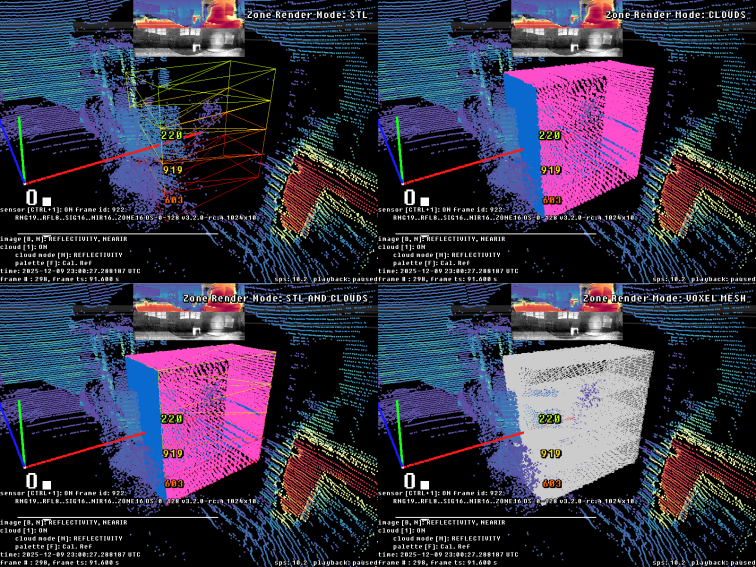
The four render modes
Starting in 0.16.0, the visualizer also has a new “flags mode” called Highlight Zones. To select it, press the C key until the Highlight Zones mode is active, and the visualizer will colorize the LiDAR points according to which zone they occupy. (Points that occupy multiple zones will only get the color of one of the zones.)
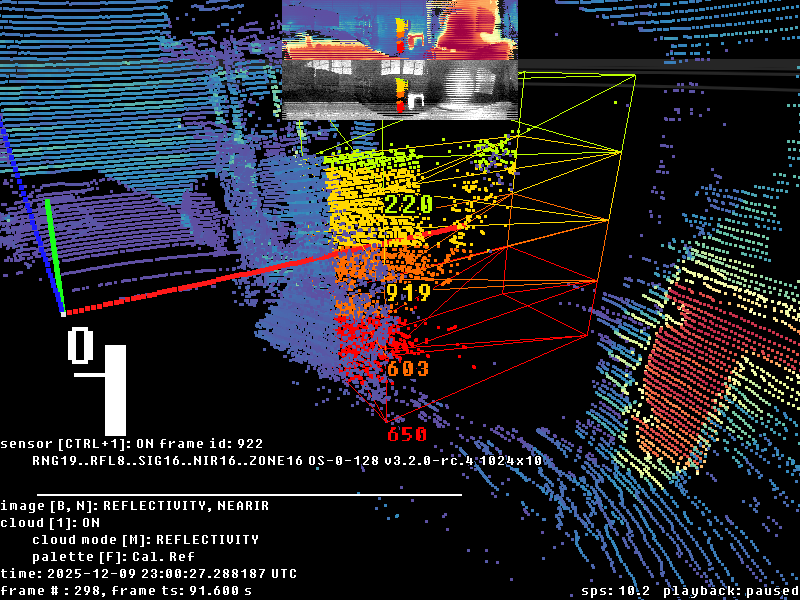
Highlighting points according to zone occupancy